Login your Droptop Account at https://droptop-app.com
On the left panel, click on "Inventory".
You can use the search bar or apply filters to find the product.
- Once you locate the product, update the Quantity by clicking the Edit button
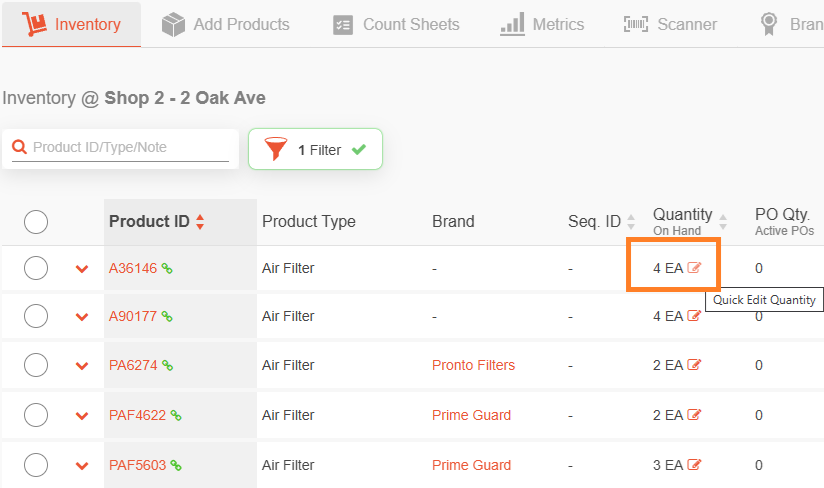
- After making the update, click the green check mark to save the changes.
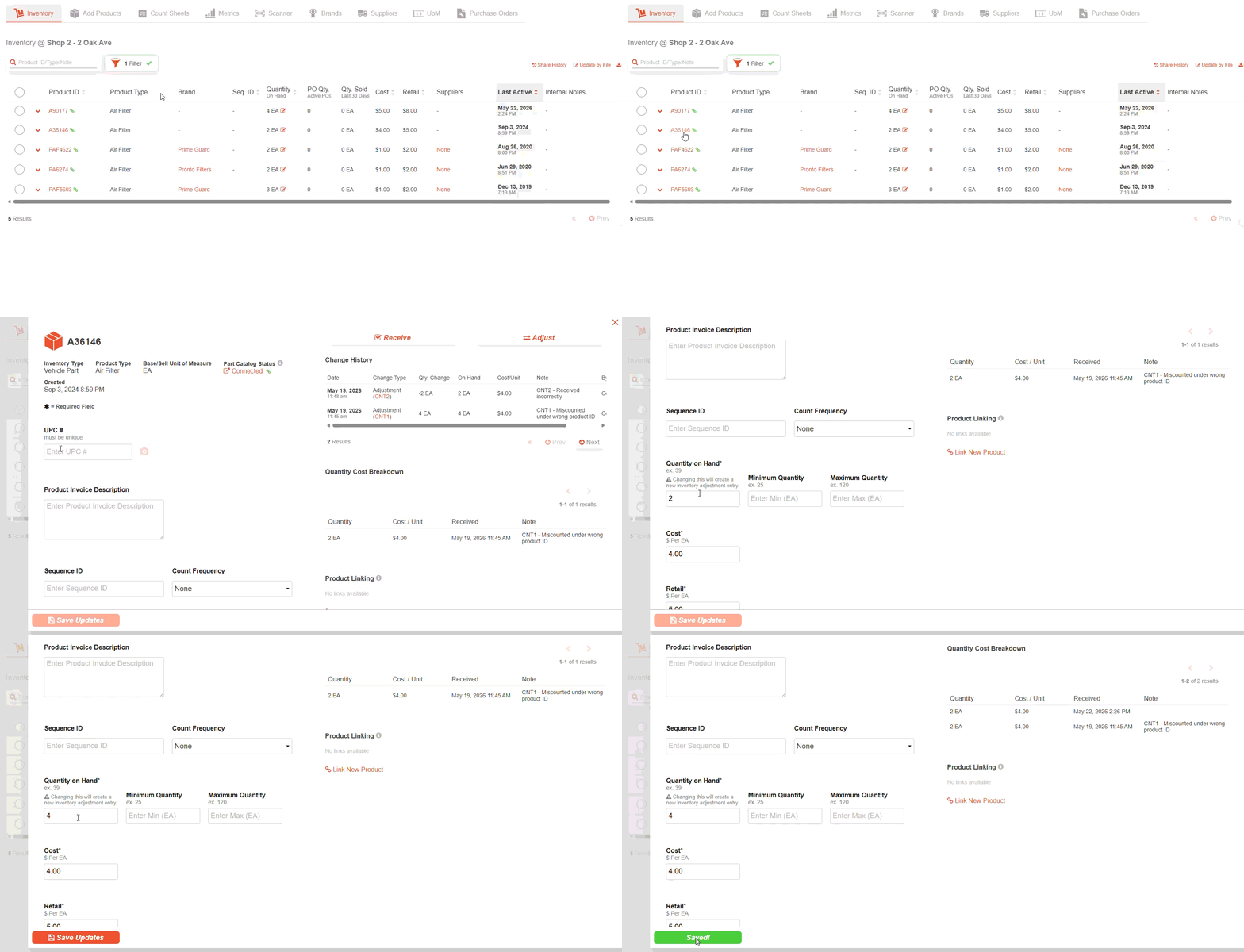
Updates can also be made by clicking on the Item itself to open the product details screen. Here you may update the quantities in 3 different ways.
1) Update Quantity on Hand
Click on the product ID.
Edit the value in the "Quantity on Hand" field to update the quantity.
2) Update via Receive
Click on Receive.
Update the amount received & if the cost per unit has changed.
Optionally, leave a note that will be recorded in the change history.
3) Update via Adjustment
Click on Adjustment.
Update the inventory on hand & if the cost per unit has changed.
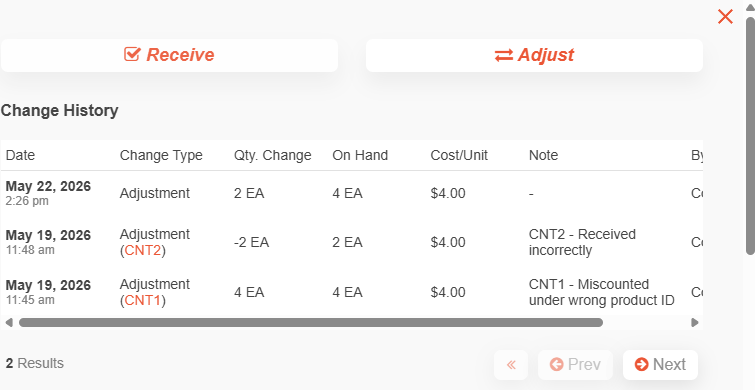
Optionally, leave a note explaining the adjustment, which will be recorded in the change history
You're all set! If you have any questions or need further assistance, please don't hesitate to reach out to us via live chat.
Was this article helpful?
That’s Great!
Thank you for your feedback
Sorry! We couldn't be helpful
Thank you for your feedback
Feedback sent
We appreciate your effort and will try to fix the article