To update a vehicle's license plate, navigate to Start Order from the left navigation menu and select Vehicle and then select VIN.
Important: Do not start the order by selecting the customer or plate. The existing license plate is associated with the vehicle record, and starting with the VIN ensures you are updating the correct vehicle.
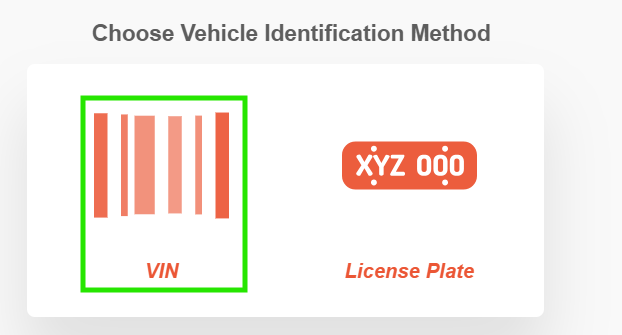
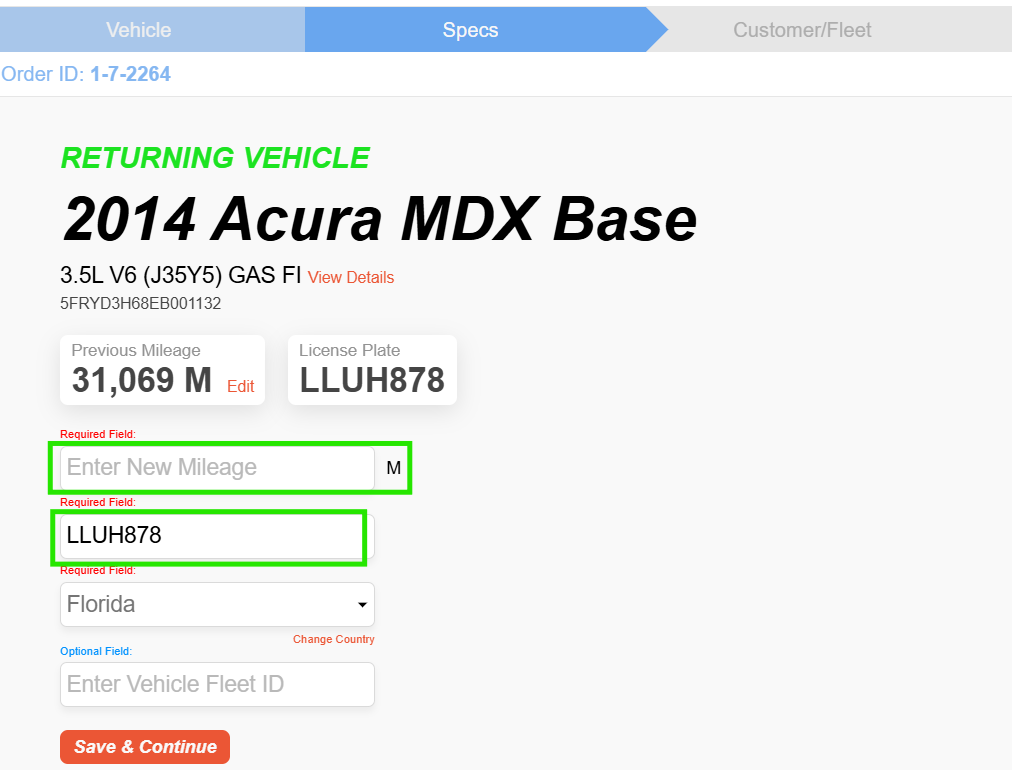
Once the VIN has been selected, you will be taken to the vehicle's Specs page. From here, you can edit and update the license plate information.
After updating the plate number, enter the vehicle's current mileage, then click Save & Continue.
Note: If there is already an open ticket for the vehicle, cancel the ticket before proceeding. Once canceled, restart the order using the vehicle's VIN and update the license plate information as described above.
Was this article helpful?
That’s Great!
Thank you for your feedback
Sorry! We couldn't be helpful
Thank you for your feedback
Feedback sent
We appreciate your effort and will try to fix the article