Count Sheets Overview
Before starting a count sheet, ensure your inventory products have the Count Frequency properly set.
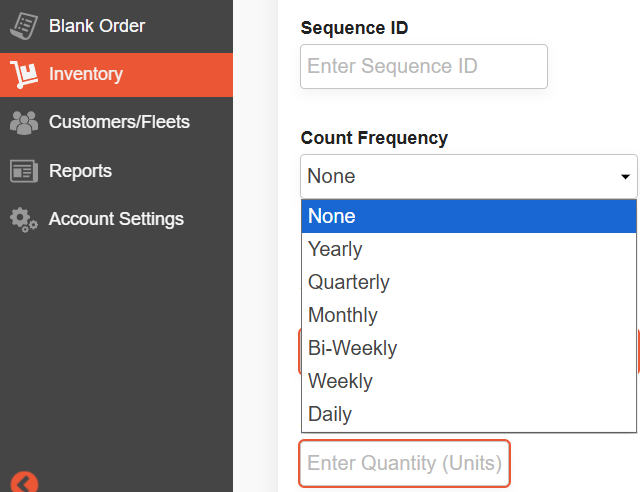
The Count Sheet is driven by the assigned frequency on each part (weekly, biweekly, monthly, quarterly, or yearly). When a count sheet is created, it automatically includes all parts that match the selected frequency.
If a part does not have a count frequency set, it will not appear in the count sheet. In this case, you can either add the part manually or use an Out-of-Sequence Count (see section below).
It is recommended to complete inventory counts on a mobile device (tablet or phone), as count sheets cannot be printed.
Once a count sheet has been started, it cannot be deleted.
Starting a Count Sheet
To generate a count sheet:
- Go to Inventory > Count Sheets
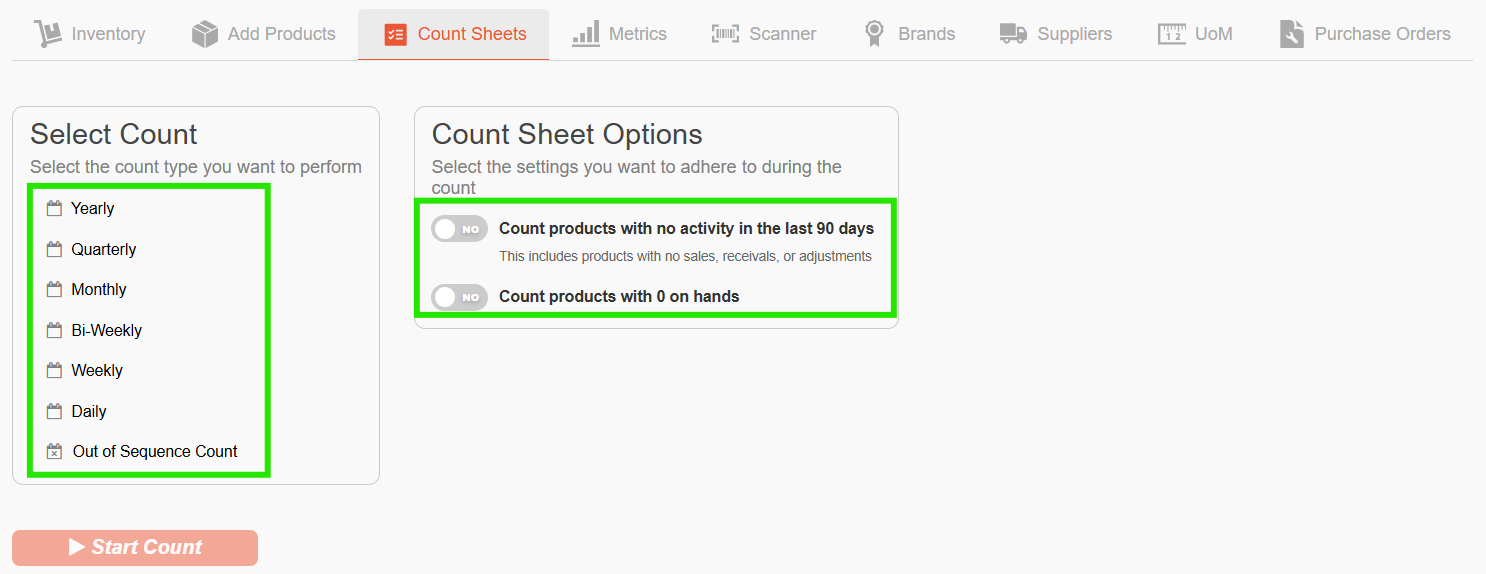
- Select the type of count you want to perform (Weekly, Bi-Weekly, Monthly, Quarterly, Yearly, Daily, or Out-of-Sequence) and choose any applicable count sheet options
Note: Inventory parts with a matching Count Frequency assigned will automatically populate on the count sheet. If a part is not configured with a Count Frequency, it must be added manually or counted using an Out-of-Sequence Count (see below).
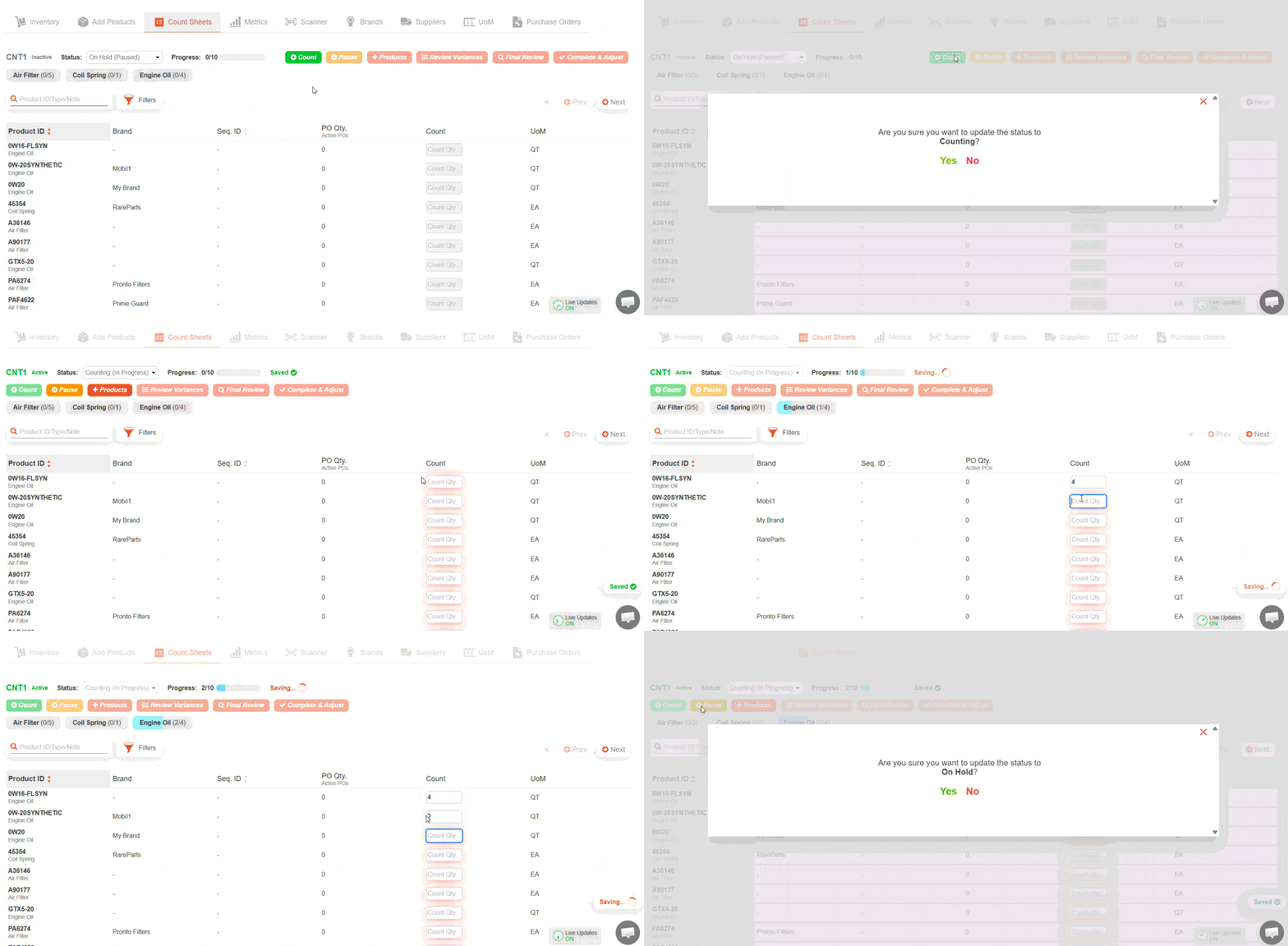
- Start the count and enter the on-hand quantity for each item
Note: You can pause a count at any time by selecting Pause, and resume it later from the Count Sheets screen by selecting the Count ID (status will show as On Hold). While paused, you can also add additional products using + Products.
Reviewing Your Variances and Adjusting Your On Hand
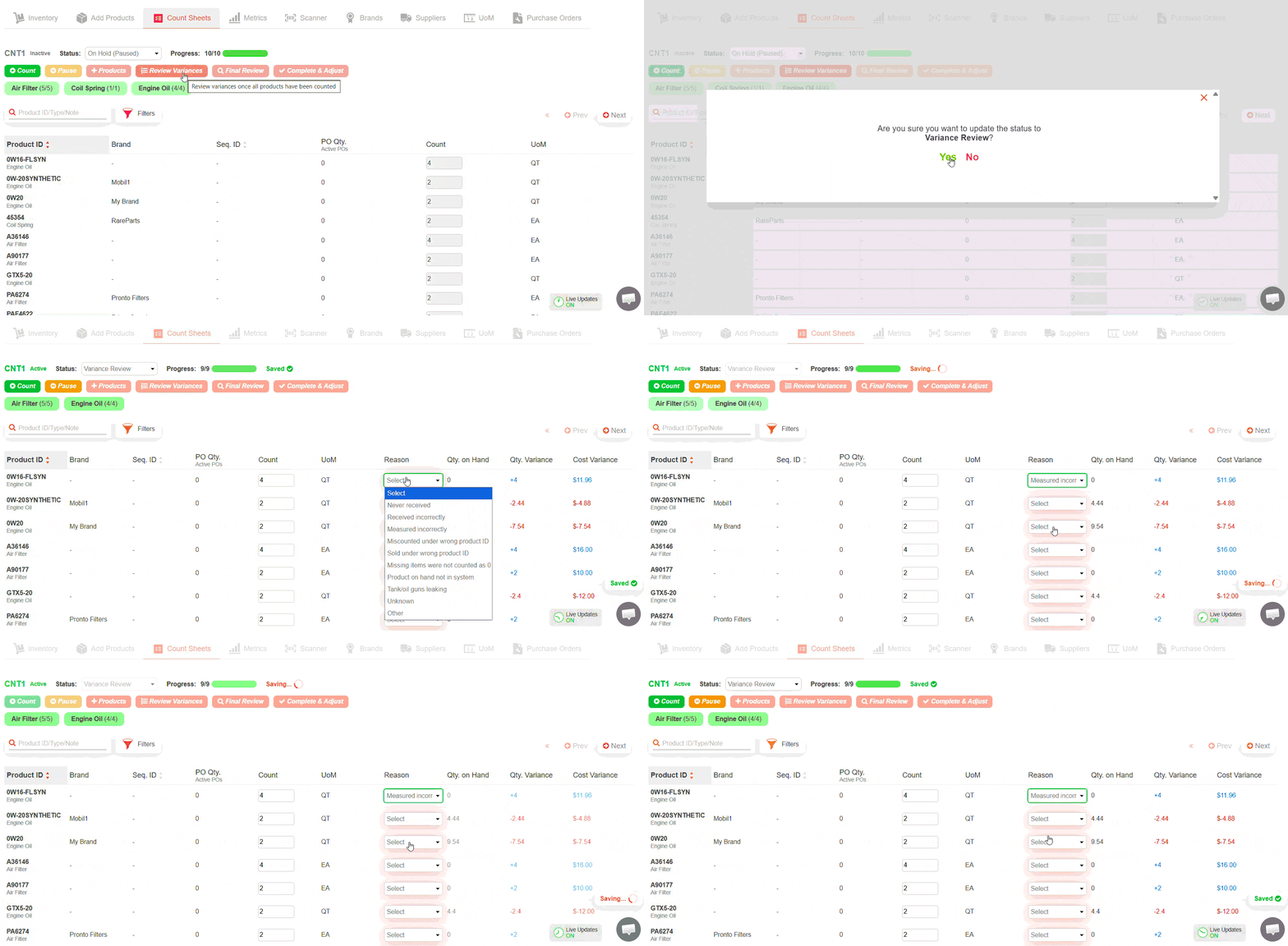
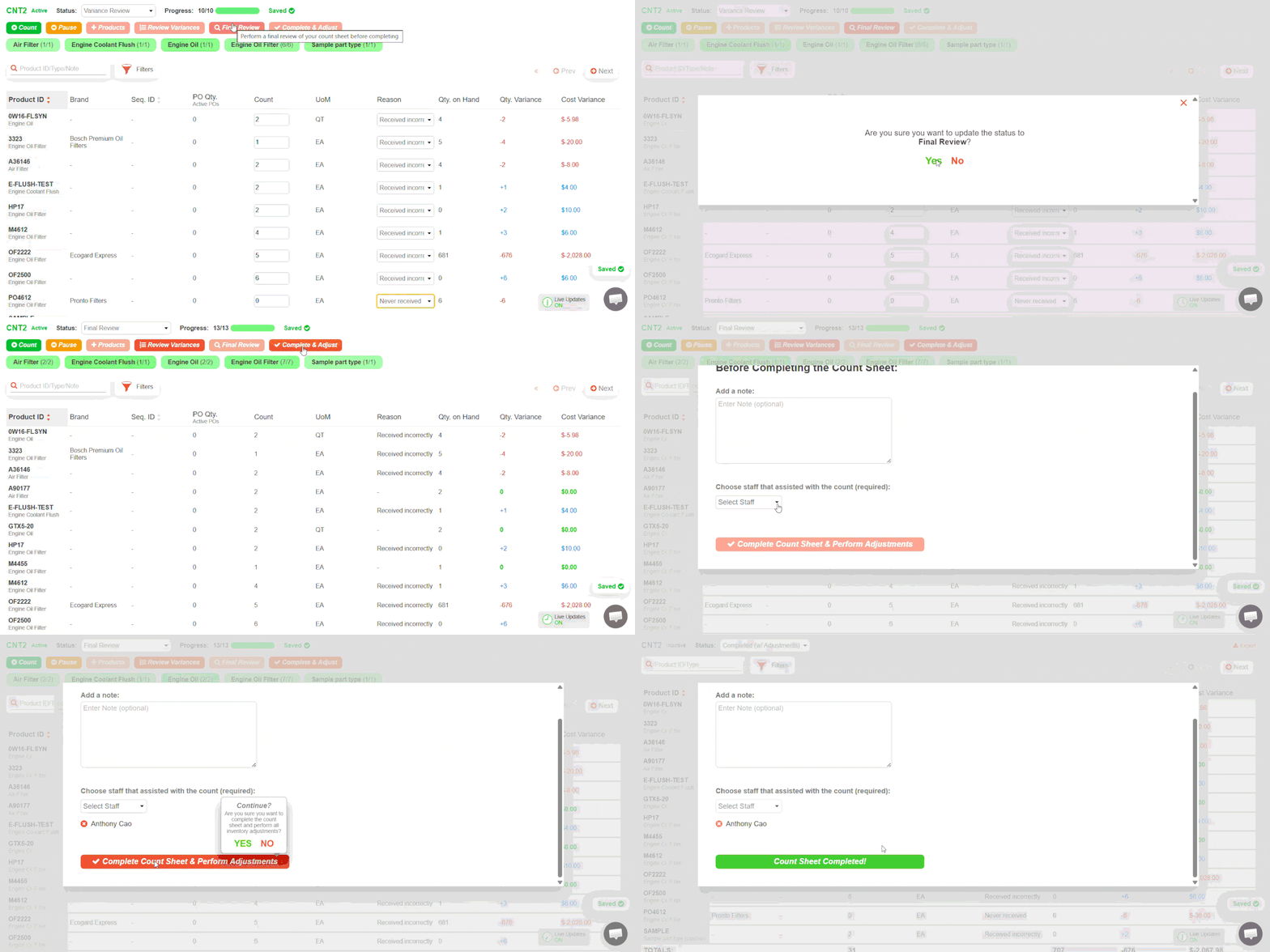
Once the count has been completed, review any quantity discrepancies before finalizing the count sheet. Variances occur when the counted quantity differs from the current on-hand quantity in inventory.
- Enter a reason for any variances
- Select Final Review to confirm the count details and review all adjustments
- Click Complete & Adjust to finalize the count and update the on-hand quantities in inventory
Out-of-Sequence Count
An Out-of-Sequence Count allows you to run a count for specific product types instead of a scheduled frequency.
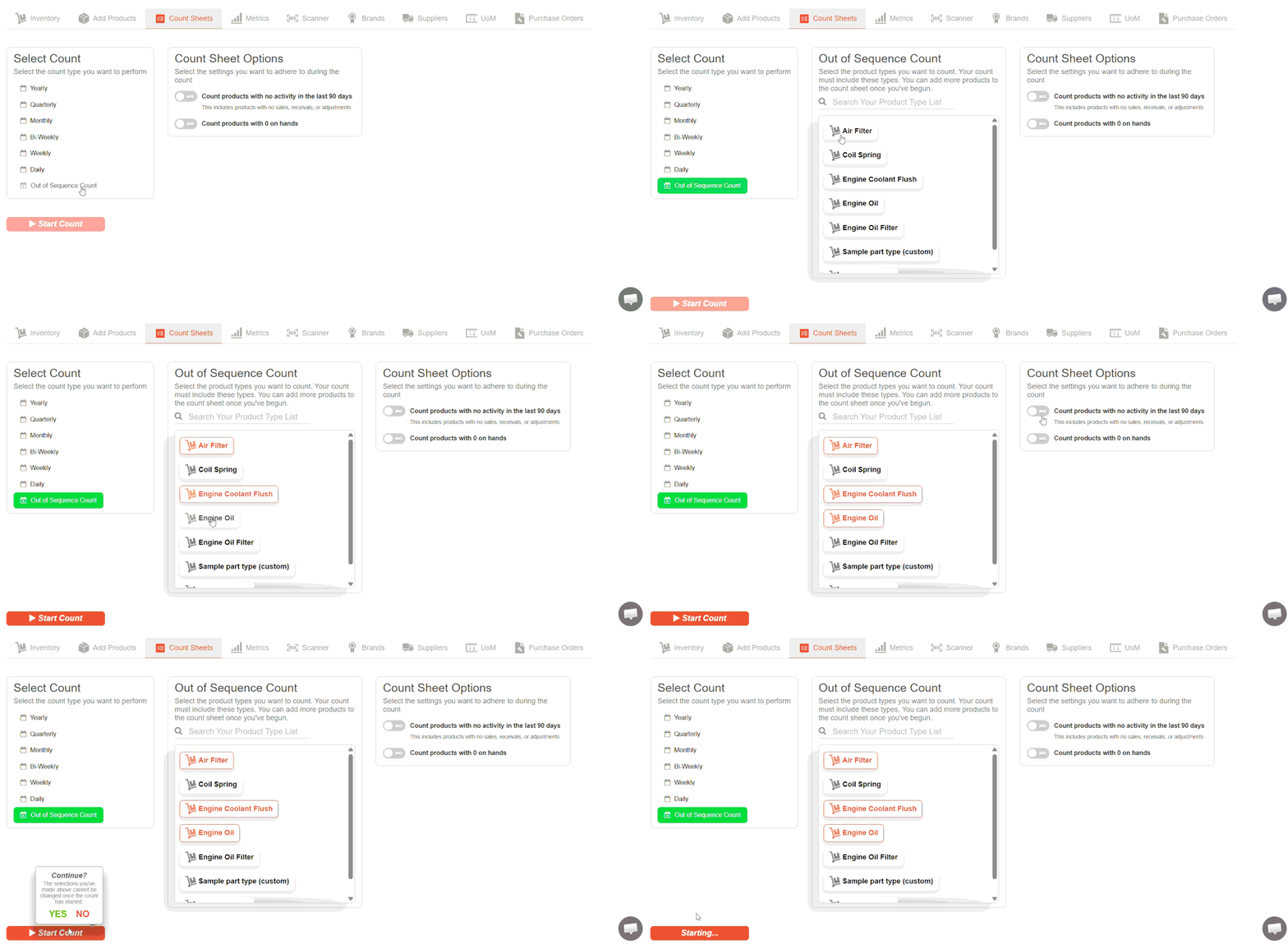
To run an Out-of-Sequence Count:
- Go to Inventory > Count Sheets
- Select Out-of-Sequence Count
- Choose the product types you want to include
- The system will generate a count sheet based on the selected product types
Was this article helpful?
That’s Great!
Thank you for your feedback
Sorry! We couldn't be helpful
Thank you for your feedback
Feedback sent
We appreciate your effort and will try to fix the article