1. To access your Accounts Receivable, start by clicking "Customers/Fleets" on the navigation panel.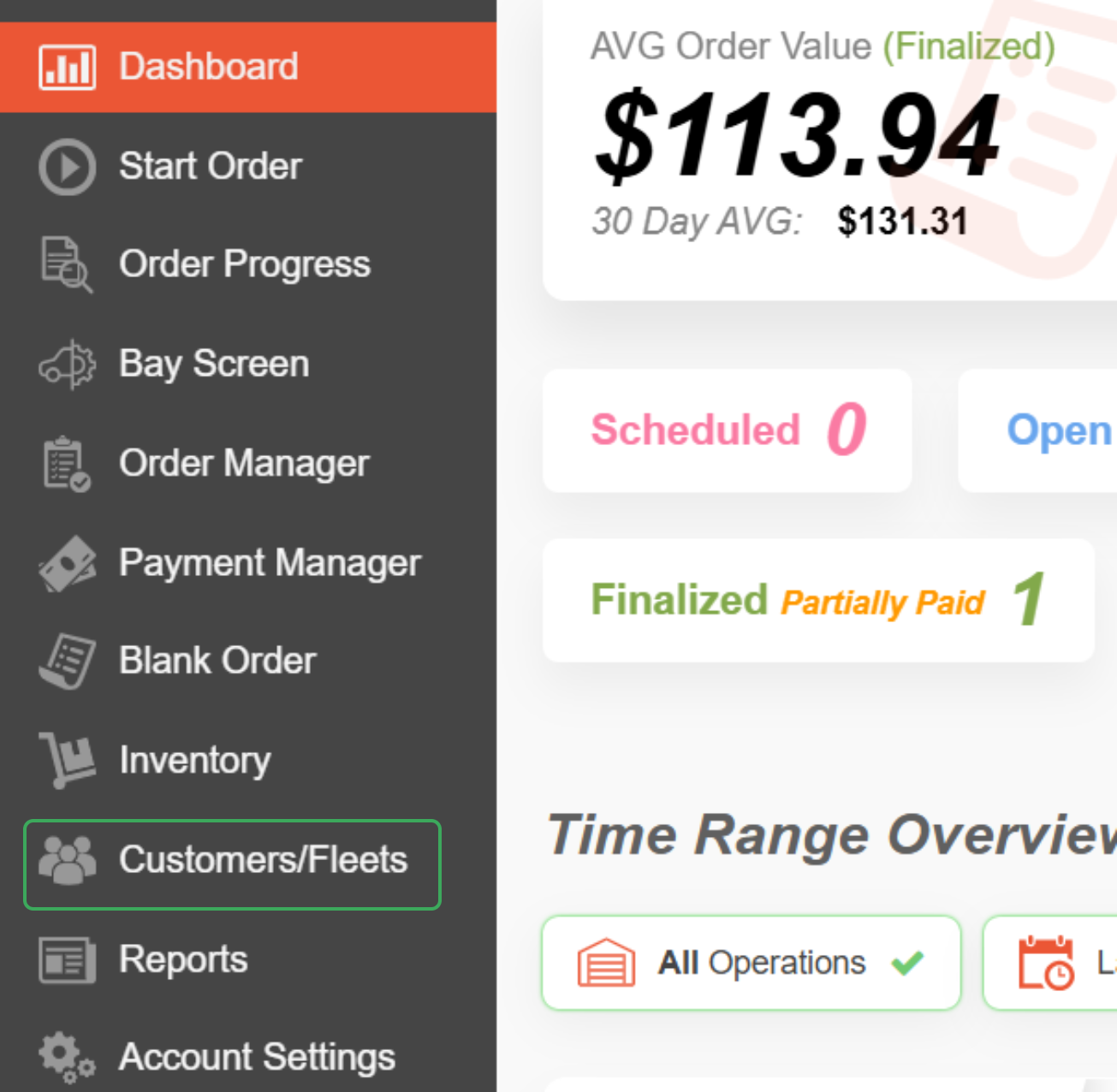
2. Select whether you wish to view the Accounts Receivable for a "Customer" or "Fleets" and then click "View Details."
Locate the "Accounts Receivable" box and click "View".
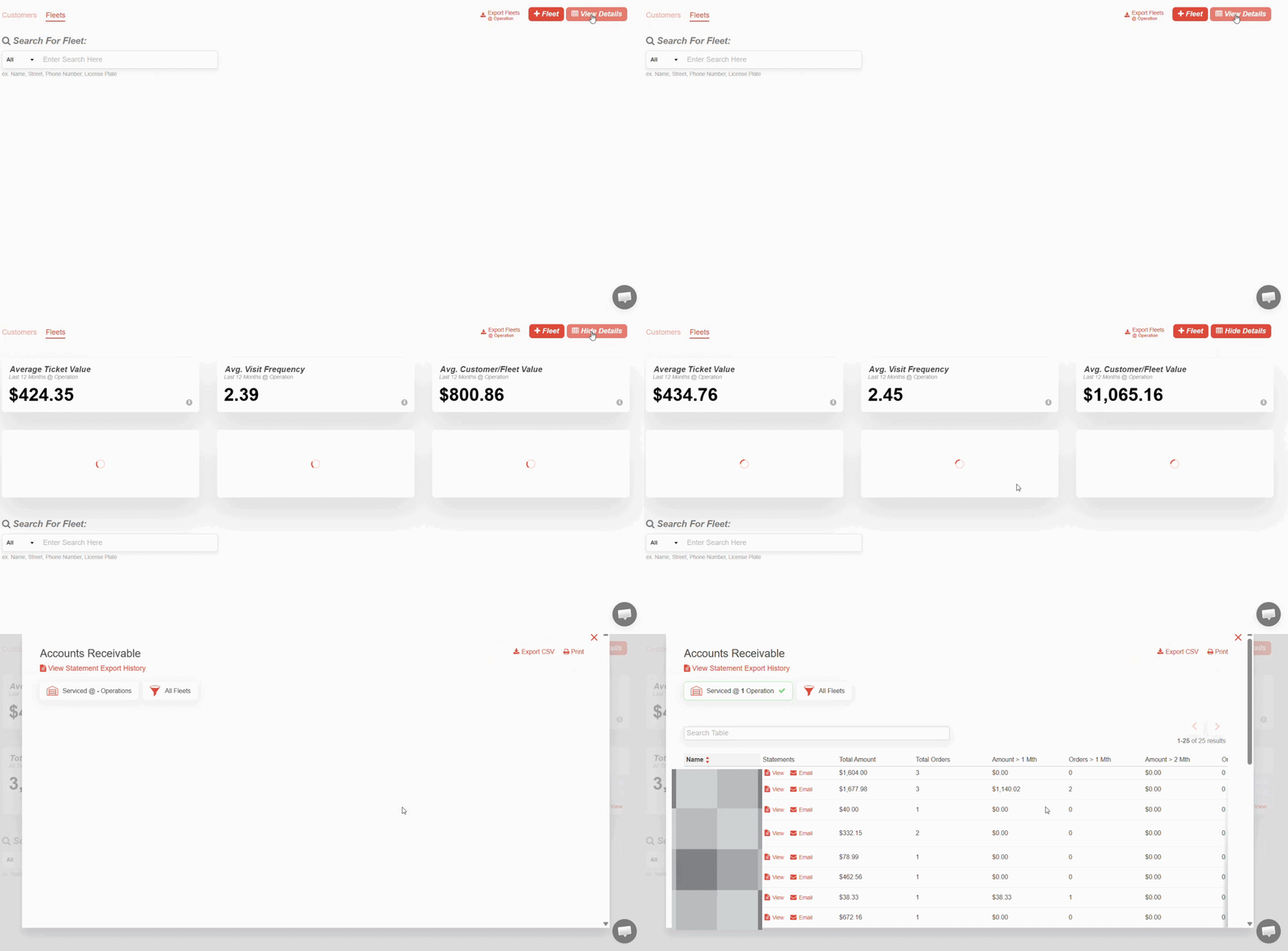
3. Within the table, there are many functionalities:
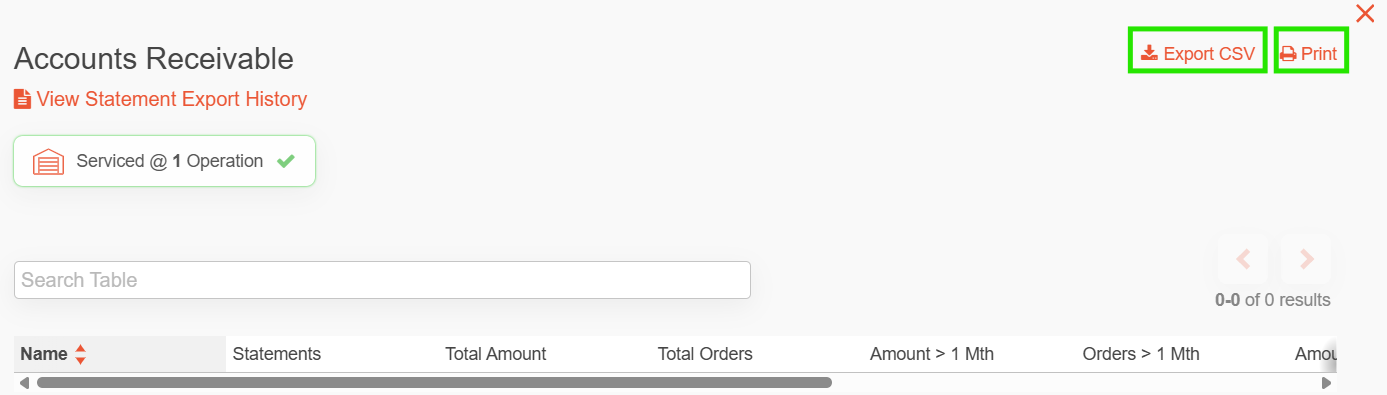
- You can export the table summary to CSV or Print.
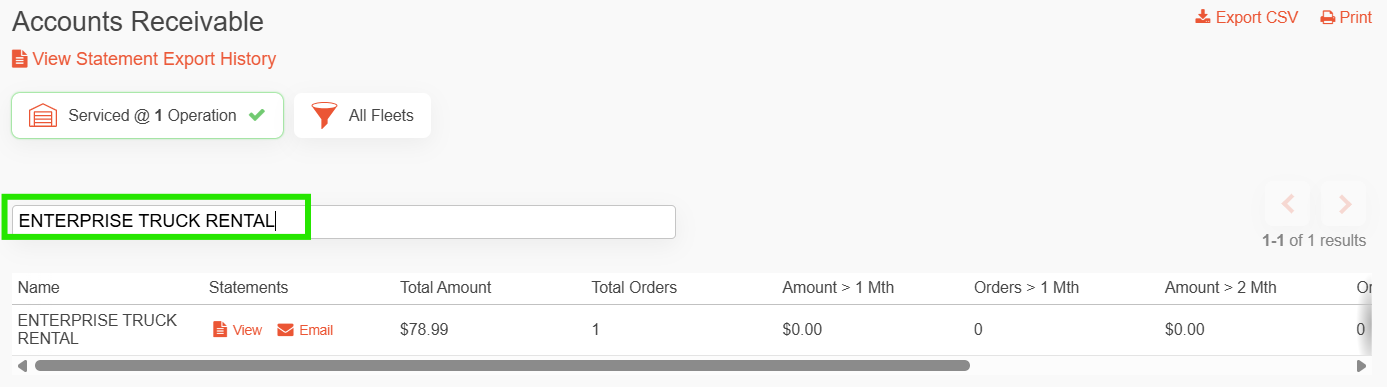
You can search the table to locate the Customer or Fleet statement.
Individual statements can be viewed, exported or emailed.
You can email statements to the customer or fleet directly.
Export to CSV or Print
Search Customer or Fleet statement
View/Export/Email individual statements
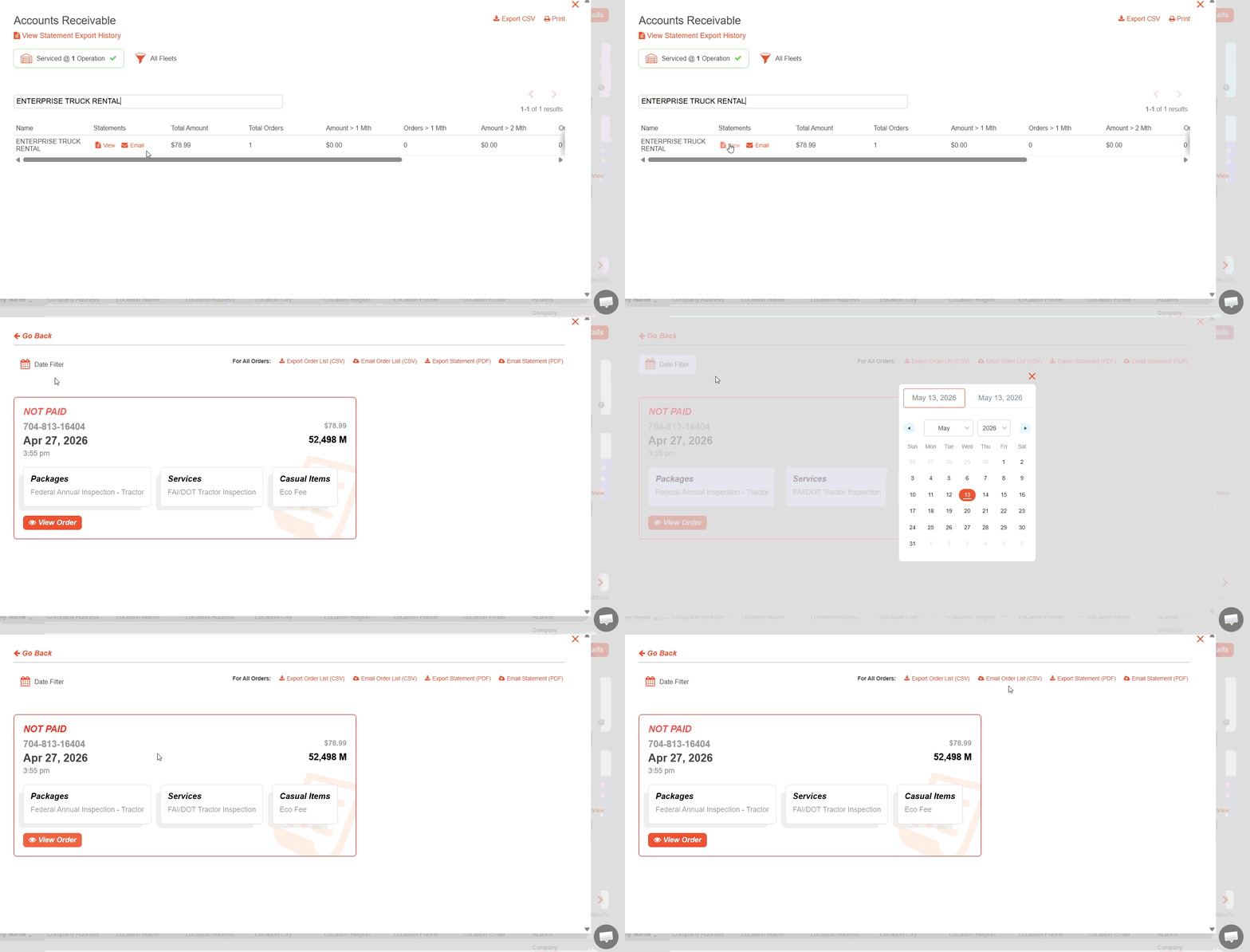
When clicking on "View", all unpaid orders related to that customer or fleet will open up in another table. In this table, you can:
Filter by date range to pull up unpaid orders during the specified date range.
Export the order list or statement (CSV)
Email the order list or statement (CSV)
Export the statement (PDF)
Email the statement (PDF)
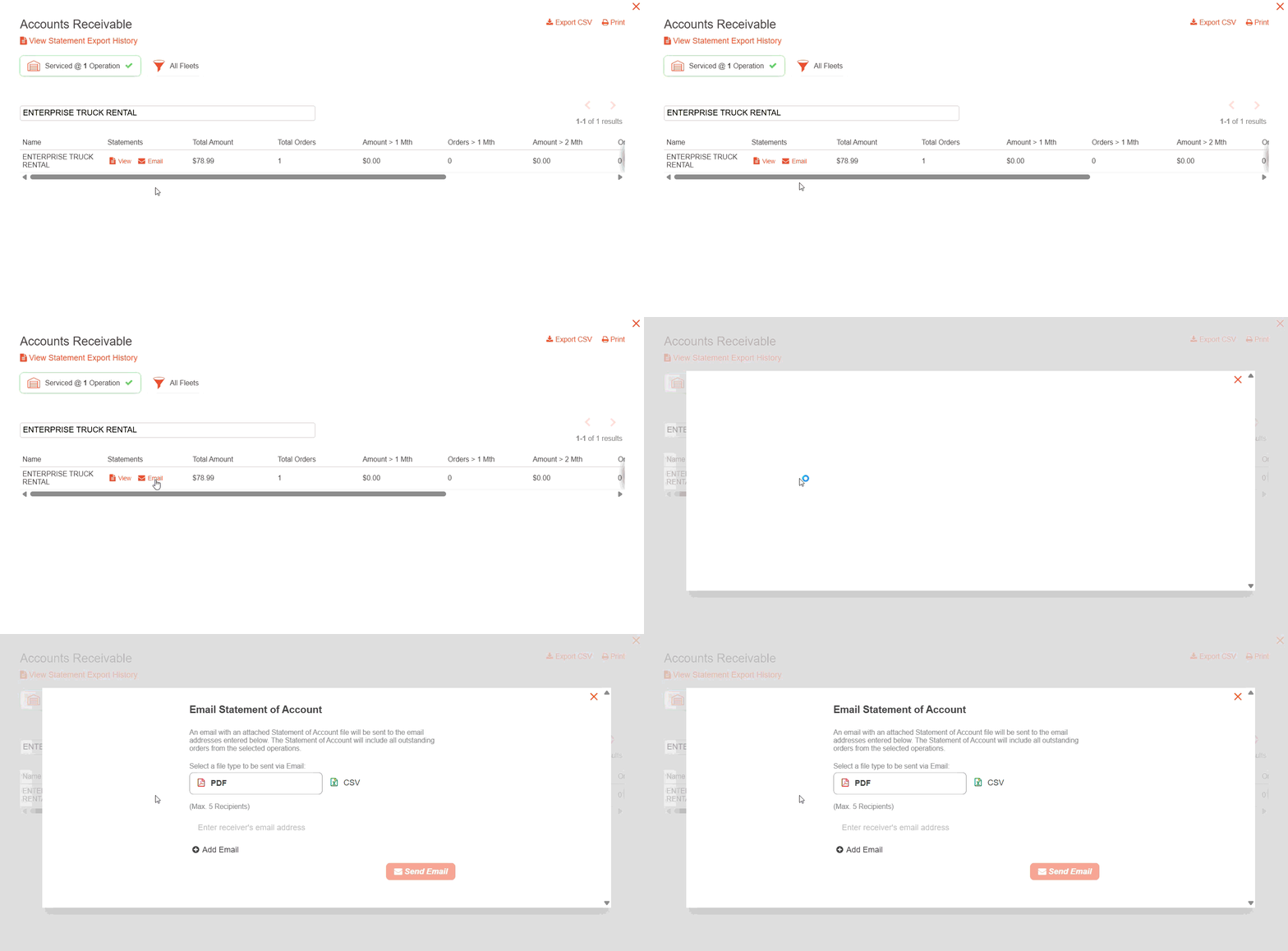
Email the Statement directly to Customer or Fleet
You can email the statement directly as a PDF or CSV file to the recipient's email address on file.
When creating a Customer/Fleet profile, be sure to include their email address. Any email address on file will automatically populate when you email a statement to the Customer or Fleet.
Was this article helpful?
That’s Great!
Thank you for your feedback
Sorry! We couldn't be helpful
Thank you for your feedback
Feedback sent
We appreciate your effort and will try to fix the article