Within the order, you can click Finalize at the bottom of the invoice.

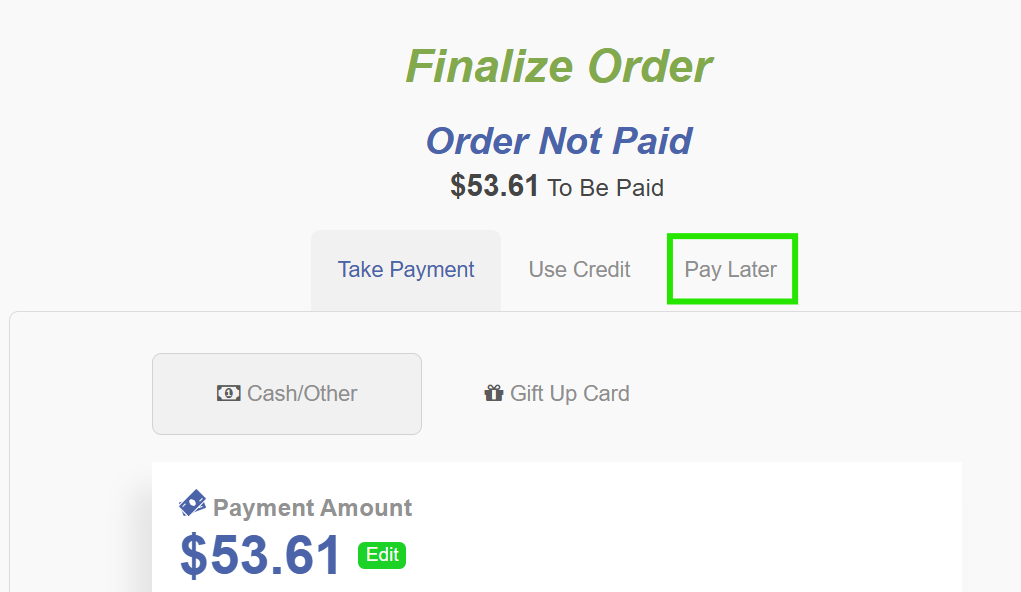
A window will open, and for Fleet Orders that will be paid at a later date, select Pay Later.
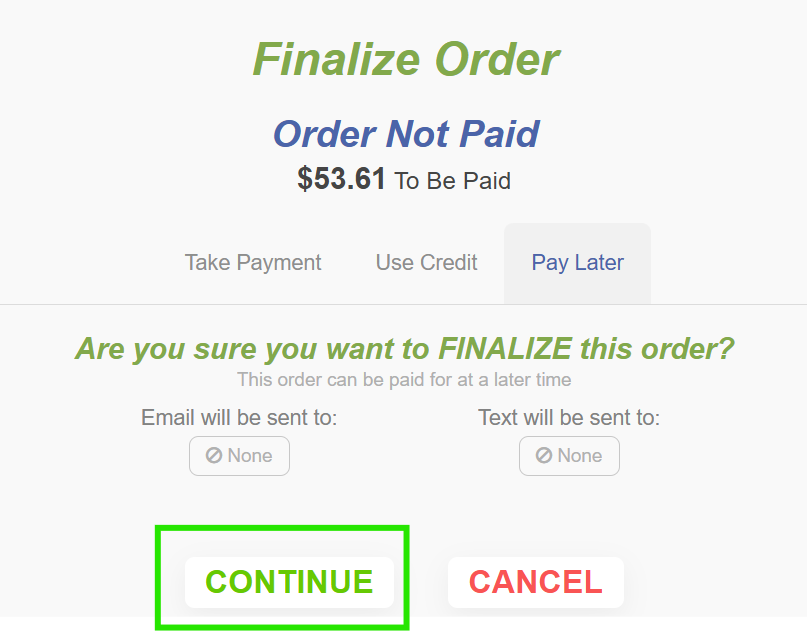
It will prompt you to finalize the order. If an email address or phone number is on file for the Fleet, it will appear below so you can send the order to them.
Select Continue. This will finalize the ticket with a payment status of “Unpaid,” moving the balance to Accounts Receivable.
At the end of the month, you can generate statements or review outstanding balances in the Accounts Receivable section. For more details, see our How to Access Your Accounts Receivable guide.
Once a Fleet payment is received, go to Order Manager and filter by the Fleet Location name.
Select the applicable orders and click “Pay” to apply the payment and close out the outstanding balance.
Was this article helpful?
That’s Great!
Thank you for your feedback
Sorry! We couldn't be helpful
Thank you for your feedback
Feedback sent
We appreciate your effort and will try to fix the article