TABLE OF CONTENTS
Getting Started
Most payments in Droptop start from the + Payment $ button on the order. From there, you pick the method that matches how the customer is paying.
Account credits are the exception - they are applied with the + Account Credit button (see Account Credit).
Open the order and select + Payment $. The payment window opens with a tab for each payment method enabled on your account.

Every payment window shares the same core controls:
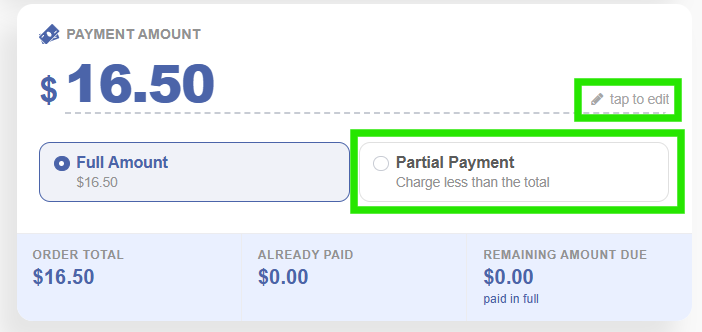
- Payment Amount - defaults to the order balance. Selecting tap to edit automatically switches from Full Payment to Partial Payment.
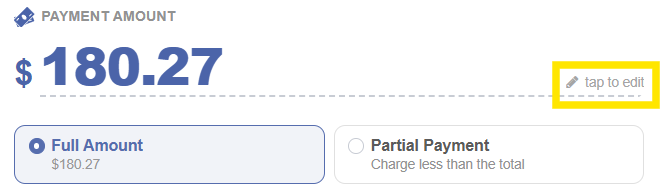
- Full Amount / Partial Payment - charges the whole balance, or less than the total.
- Order Total, Already Paid, Remaining Amount Due - a live summary of the order balance.

- Finalize Order? - select Yes to finalize the order once it is paid, or leave it on No.
- Email / Text will be sent to - if an email and/or phone number is included, an email and/or text receipt is sent automatically after payment is made.
Payment Methods
Use this table to find the right method, then jump to its section for step-by-step instructions.
| Payment Method | Use it for |
|---|---|
| Integrated Methods - processed through 360 Payments or Stripe, which connect directly to Droptop | |
| 360 Payments Terminal | In-person card payment on a 360 Payments card terminal |
| Stripe Terminal | In-person card payment on a Stripe card terminal |
| Stripe Online | Keying in the customer's card details without a terminal |
| Payment Link | Sending the customer a Stripe link so they can pay the invoice by card themselves |
| Non-Integrated Methods - cash, or your own payment processor, where you take the payment outside Droptop and record it manually | |
| Cash/Other | Cash, or other payment types set up in Company Settings |
| Gift Cards | |
| Gift Up Card | Gift Up gift card codes (requires your Gift Up API key in Operation Settings) |
| Account Credits | |
| Account Credit | Applying credits from the customer or fleet profile |
Integrated Methods
360 Payments and Stripe are the payment integrations supported within Droptop.
360 Payments supports in-person card payments.
Stripe supports in-person payments (Stripe Terminal) and online payments (Stripe Online and Payment Link).
360 Payments
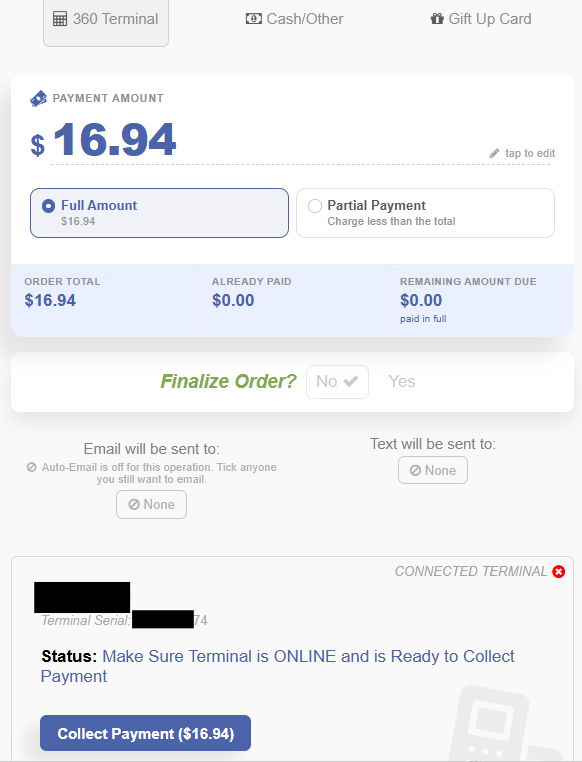
Use the 360 Terminal tab to take a card payment on a 360 Payments card terminal.
- Select + Payment $, then select the 360 Terminal tab.
- Confirm the payment amount, and choose Full Amount or Partial Payment.
- Set Finalize Order? to Yes or No, and confirm the email/text receipt recipients, if applicable.
- Under Choose a Terminal, select the terminal that will receive the card payment.
- Confirm the terminal Status shows it is online and ready to collect payment.
- Select Collect Payment, then have the customer complete the payment on the terminal.
Stripe Terminal
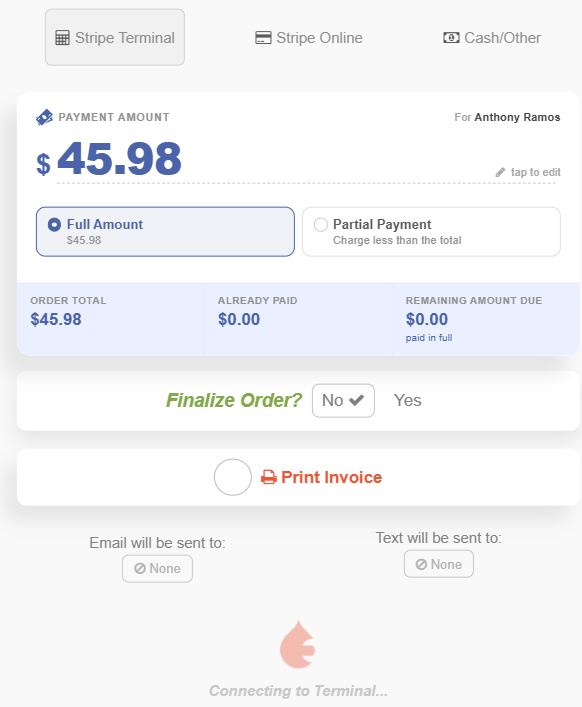
Use the Stripe Terminal tab to take an in-person card payment on a Stripe card terminal.
- Select + Payment $, then select the Stripe Terminal tab.
- Confirm the payment amount, and choose Full Amount or Partial Payment.
- Set Finalize Order? to Yes or No, and select Print Invoice if needed. Confirm the email/text receipt recipients, if applicable.
- Choose the terminal that will receive the card payment, and confirm the terminal status is online.
- Select Collect Payment, then have the customer complete the payment on the terminal.
Stripe Online
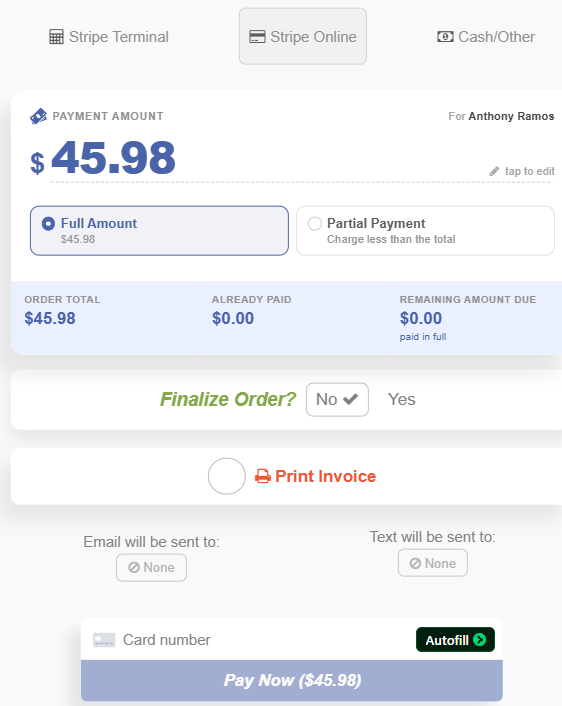
Use the Stripe Online tab to key in a card payment without a terminal. It works the same way as a Payment Link, except you enter the card details instead of the customer.
- Select + Payment $, then select the Stripe Online tab.
- Confirm the payment amount, and choose Full Amount or Partial Payment.
- Set Finalize Order? to Yes or No, and confirm the email/text receipt recipients, if applicable.
- Enter the card details in the Card number field (or use Autofill).
- Select Pay Now.
Payment Link
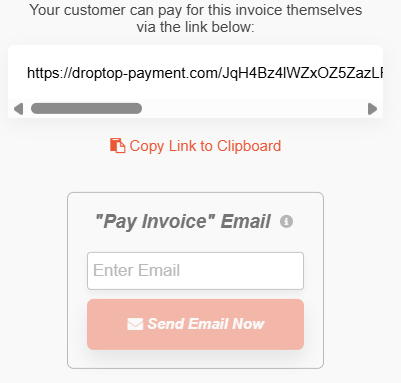
Use Payment Link to let the customer pay the invoice by card themselves.
- On the order, select Payment Link.

- Send the link to the customer in one of two ways:
- Select Copy Link to Clipboard and paste it into your own message, or
- Enter the customer's email under "Pay Invoice" Email and select Send Email Now.
- The customer opens the link and pays by card directly. The payment is applied to the order.
Non-Integrated Methods
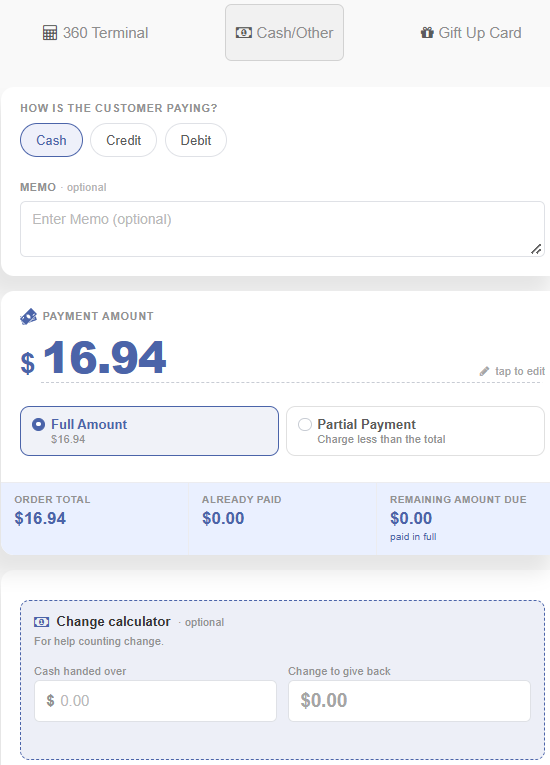
If you are taking cash, or card payments through your own (non-integrated) payment processor, use the Cash/Other tab to record the payment in Droptop.
- Select + Payment $, then select the Cash/Other tab.
- Select a payment type. Payment and sub-payment types appear based on your Payment Type setup under Company Settings.
- Choose Full Amount or Partial Payment.
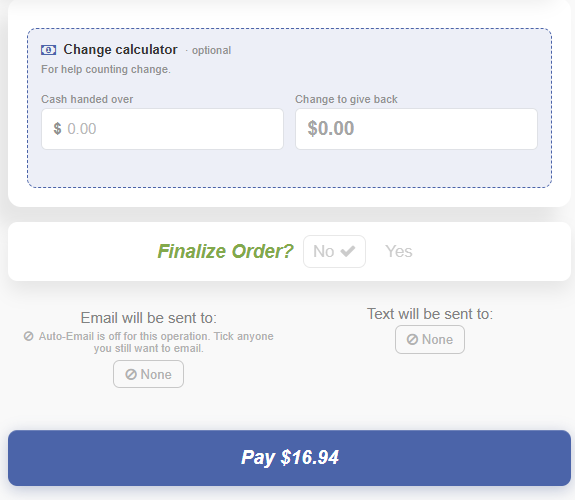
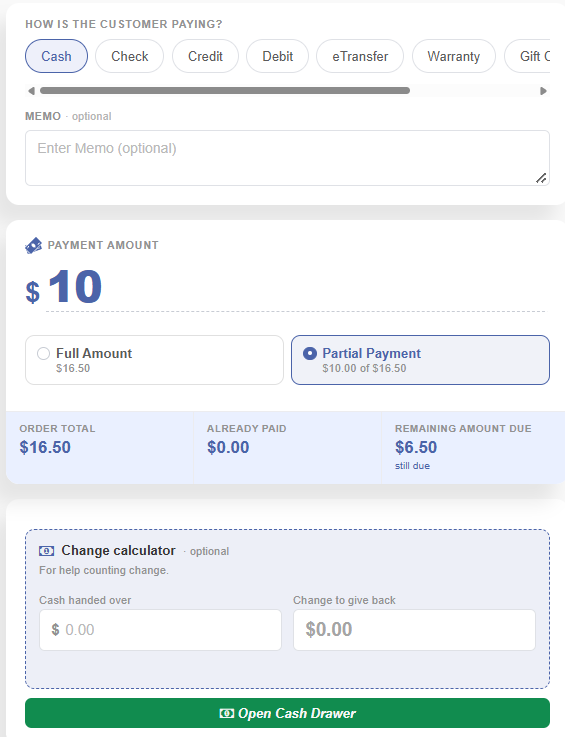
- For cash, use the Change calculator (optional). If the customer hands over more than the amount due, enter the Cash handed over and it will show the Change to give back.
- Set Finalize Order? to Yes or No, and confirm the email/text receipt recipients, if applicable.
- Select Pay.
Gift Up Card
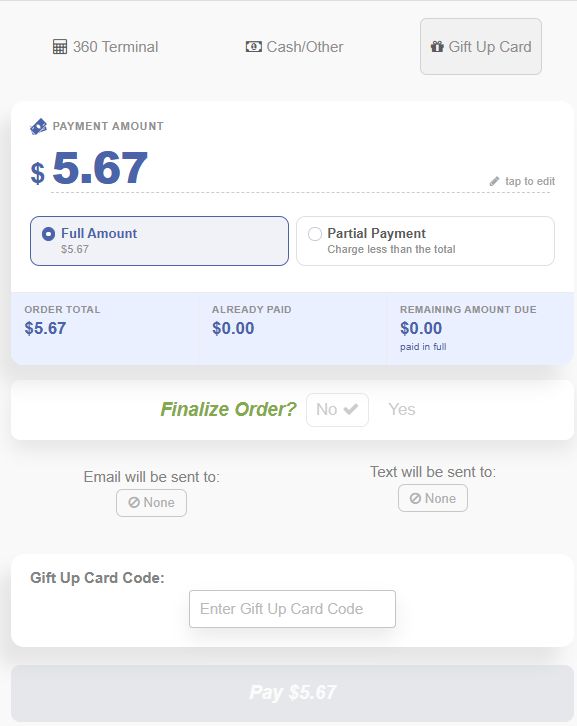
If you accept Gift Up gift cards, customers can pay with a Gift Up Card code.
- Select + Payment $, then select the Gift Up Card tab.
- Choose Full Amount or Partial Payment.
- Set Finalize Order? to Yes or No, and confirm the email/text receipt recipients, if applicable.
- Enter the customer's code in the Gift Up Card Code field.
- Select Pay.
Account Credit
If the customer or fleet profile has account credits, you can apply them to the order.
- On the order, select + Account Credit. The window shows the Credits Available on the profile.

- Under Credit to Use, enter the amount to apply, or select Apply Max Credit. New Payable Order Total updates to show the remaining balance.
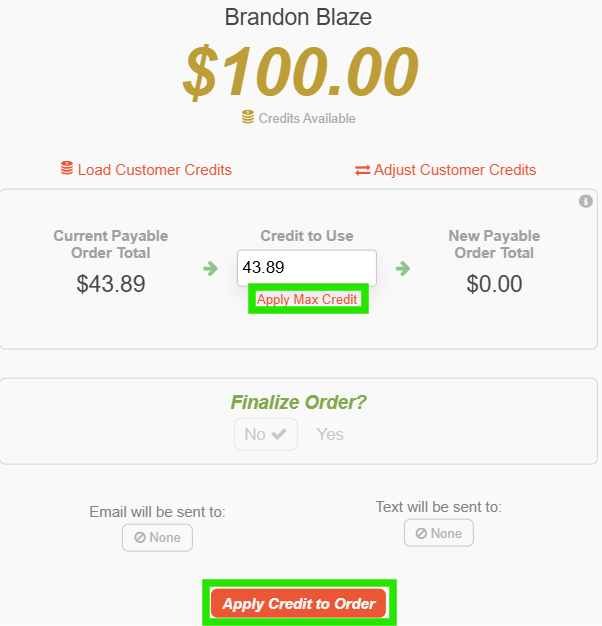
- Set Finalize Order? to Yes or No, and confirm the email/text receipt recipients, if applicable.
- Select Apply Credit to Order.
Use Load Customer Credits to add credits to the profile, or Adjust Customer Credits to correct the balance.
How to Split a Payment
You can split an order's balance across more than one payment method - for example, part cash and part card.
- Select + Payment $ and choose the tab for the first payment method.
- Select Tap to Edit or Partial Payment, and enter the first amount.
- Select the blue Pay button.
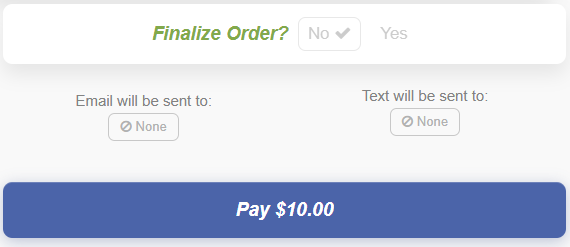
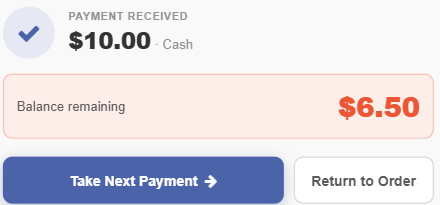
- A summary of the payment received and the remaining balance appears. Select Take Next Payment.
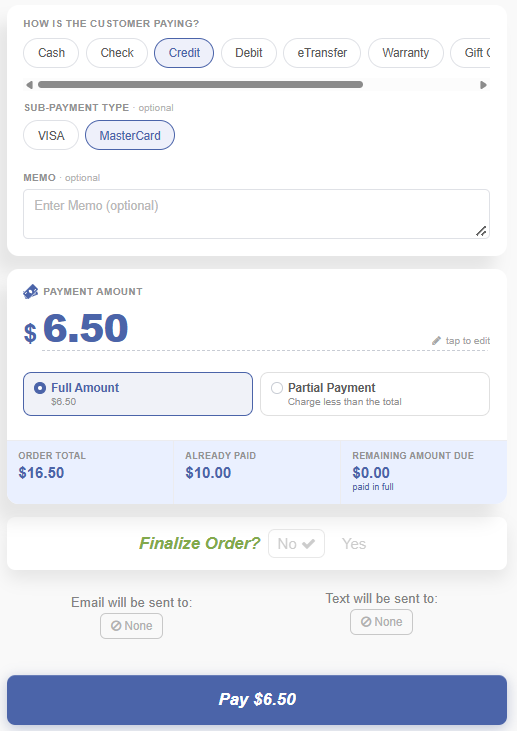
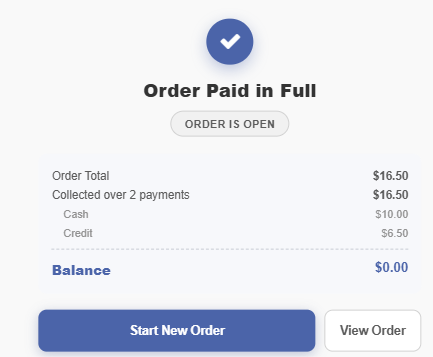
- Select the next payment method, and choose Full Amount (the remaining balance due) or another Partial Payment. Then select Pay.
Fleet Payments
For handling fleet payments, check out this guide: How to Handle Fleet Orders & Payments
Was this article helpful?
That’s Great!
Thank you for your feedback
Sorry! We couldn't be helpful
Thank you for your feedback
Feedback sent
We appreciate your effort and will try to fix the article