TABLE OF CONTENTS
QZ Tray
Droptop's Windows 2.1.6 version of QZ Tray (without certificate installation)
If you're running Droptop's Windows 2.1.6 version of QZ Tray (without certificate installation), check QZ Tray version & Java install:
- Ensure you're running QZ Tray from the Droptop Windows QZ Tray installer (must be version 2.1.6).
- Make sure Java is installed and running on your computer.
- Never update QZ Tray after it's installed - newer versions will cause compatibility issues with Droptop.
Website or Site Access
- Ensure that Droptop is not being blocked by QZ Tray.
- Check by right-clicking in your system tray QZ Tray → Advanced → Site Manager.
Auto-Print Not Starting / Not Printing
In Droptop, navigate to "User Settings" (gear icon) in the top right of the screen and click the "Printers & Cash Drawers" link. Follow the steps below based on what you see on this page:
- If you see the message: “Auto printing software is not detected” then do the following:
- Restart QZ Tray and refresh Droptop.
- Verify that firewall or antivirus software is not blocking QZ Tray.
- Double check the settings in QZ Tray. Right click QZ Tray in the bottom right of your taskbar and click on Advanced. Ensure that the "Block anonymous requests" option is unchecked. Additionally, we also recommend that the "Automatically start" option is checked to ensure you don't have to manually start QZ Tray every time you boot your device.
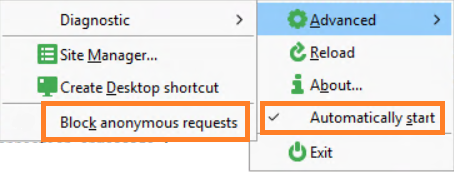
- If QZ Tray is running and nothing prints then do the following:
- Check that the printer does not have pending jobs in the printing queue.
- Restart QZ Tray and refresh Droptop.
- If the issue persists, and you've initially installed the Droptop 2.1.6 Windows version of QZ Tray, reinstall QZ Tray version 2.1.6 from Droptop (no QZ Tray). If you're using an installed version of QZ Tray directly from QZ Tray, make sure your QZ Tray version is up to date.
- If it still does not print, please get in touch with Droptop support via live chat and share the log from QZ Tray Logs can be found by right-clicking in your system tray QZ Tray → Advanced → Diagnostic → View Logs
- If QZ Tray is running but you're still seeing this message in Droptop: "Auto printing software is not detected", please refer to this guide to troubleshoot the issue further: Auto-Printing Not Running
Invoice Printers
Printer Not Installed
- Droptop can only detect printers that the device recognizes.
- Ensure the printer appears under Devices & Printers (Windows) / Printers & Scanners (MacOS)
Printer Queue Issues
- Check that there is nothing stuck in the computer printing queue.
- Clear the queue if needed, then refresh Droptop.
Network Printer Not on the Same Network
- For network printers, the computer and printer must be on the same network. If not, Windows will not detect the printer.
Auto-Printing Not Working (Printer Not Assigned)
- Ensure QZ Tray is running, if needed restart QZ Tray and refresh Droptop
- Ensure printers are properly assigned in Droptop:
- Go to User Settings (gear icon top right)
- Select Printing
- Click Assign Default Invoice Printer
Browser Cache or Session Issues
- Auto-printing may fail due to cached data or a stale session.
- Clear the browser cache and then try again.
Sticker Printer
Device Does Not Detect the Printer
- Droptop only displays printers that device recognizes
- If the printer is not visible in Devices & Printers (Windows) / Printers & Scanners (MacOS), it will not appear in Droptop
- Check for jobs stuck in the computer printing queue
- Ensure the printer is powered on, properly connected, and that the drivers are installed
Network Printer Connectivity Issues
- Printer must be on the same network as the device. If on a different VLAN or Wi-Fi network, Droptop may not detect it
Auto-Printing Not Working (Printer Not Assigned)
- Ensure QZ Tray is running; if needed, restart QZ Tray and refresh Droptop
- Auto-printing requires assignment in:User Settings → Printing → Assign Default Sticker Printer
Browser Instance or Cache Issue
- Clear the browser cache
- Restart or update the browser
- Some auto-print issues come from stale browser instances
Prints Not Fitting into the Template
- Incorrect label size or margin settings
- Output not fitting the template usually means the wrong label size in the printing preferences
- Update the width or height in Printing Preferences for that device
- Internal printer settings overriding Windows
- Built-in printer presets can override Droptop or device settings
- Remove any custom internal printer configurations
- Factory reset and clear all memory on the printer if needed to clear old label definitions
Stripe Terminal
Terminal Not Connecting
- Ensure the terminal is powered on and fully charged.
- Confirm the terminal is connected to the same Wi-Fi network as the device running Droptop
- Restart the terminal or device running Droptop to re-establish the connection.
Transaction Not Processing / Declined
- Verify the card is valid and has sufficient funds.
- Check network connectivity; intermittent Wi-Fi can cause failed transactions.
Duplicate Charges
- Stripe terminals prevent double charges for the same swipe or tap.
- If a duplicate attempt is detected, it will be flagged in the Stripe dashboard.
- Always confirm transaction status on the terminal before retrying.
Software / Firmware Updates
- Keep the Stripe terminal software up to date.
Contact Support
- For persistent issues, contact Droptop Support via live chat or email: support@droptop.io
360 Payments Terminal
Terminal Not Connecting
- Ensure the terminal is powered on and fully charged.
- Confirm the terminal is connected to the same Wi-Fi network as the device running Droptop.
- Restart the terminal or the device running Droptop to re-establish the connection.
- If needed, disconnect and reconnect the device in your shop’s Operation Settings.
Use the Update Button in Droptop
- Clicking Update checks the payment status with the terminal.
- This should be used if a previous connection disruption occurred and the status does not update in Droptop. It also helps prevent duplicate charges.
Contact 360 Payments Support
- For persistent issues related to the terminal, contact 360 Payments Support:
- Phone: 1-855-360-0360
- Email: support@360Payments.com
- Live chat is available Monday–Friday, 8:00am – 5:00pm CST via the chat bubble on this website: 360 Payments Support
Was this article helpful?
That’s Great!
Thank you for your feedback
Sorry! We couldn't be helpful
Thank you for your feedback
Feedback sent
We appreciate your effort and will try to fix the article