You can update the hours for staff members by updating the details in their Payroll Summary.
Follow the steps below to update staff hours.
- From the left-hand menu, go to Account Settings.
- Select Staff, then open the staff member’s profile by clicking the Edit button or click the staff member’s name.
- Click Payroll Summary for the operation you want to update.
- To update the staff member’s hours, click Time Record or edit the clocked in hours. You can use the Calendar icon at the top of the page to select the date for which you want to update the hours.
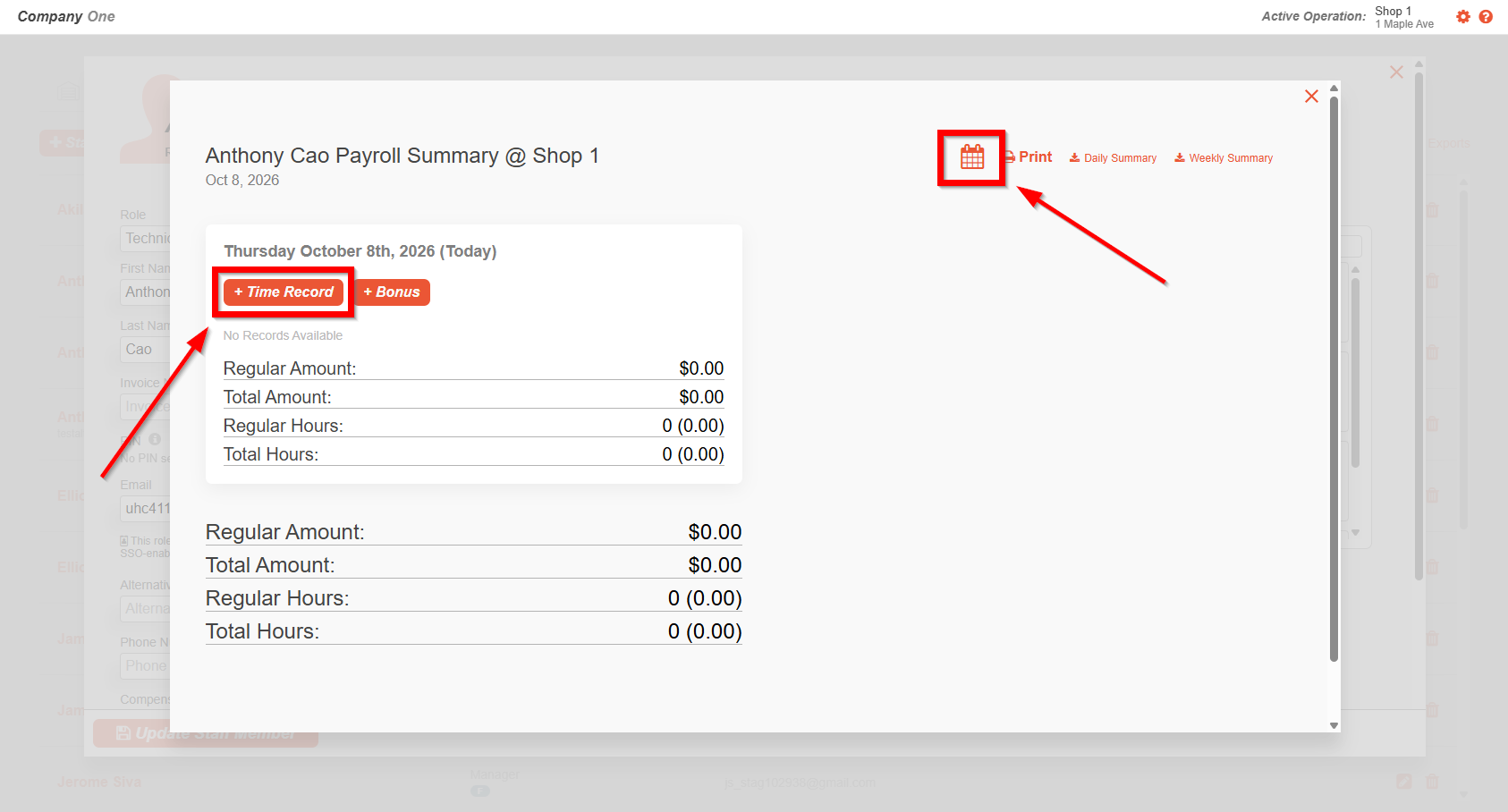
- Update the applicable time record as needed and save your changes.
Was this article helpful?
That’s Great!
Thank you for your feedback
Sorry! We couldn't be helpful
Thank you for your feedback
Feedback sent
We appreciate your effort and will try to fix the article