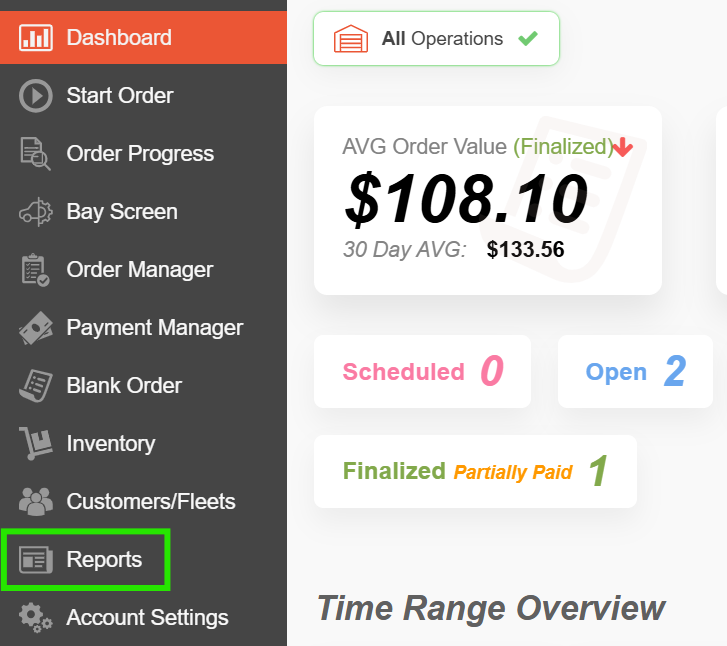
To access your Reports, start by clicking "Reports" on the left navigation panel.
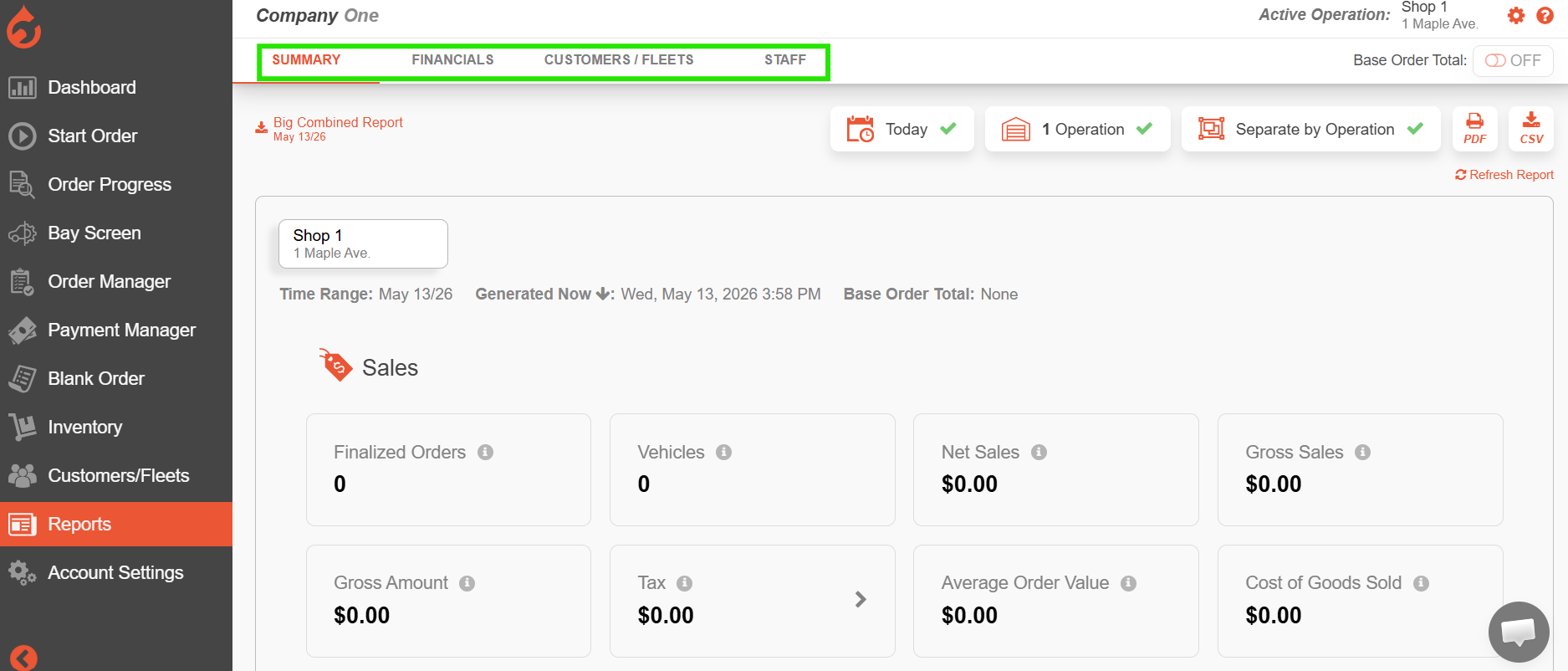
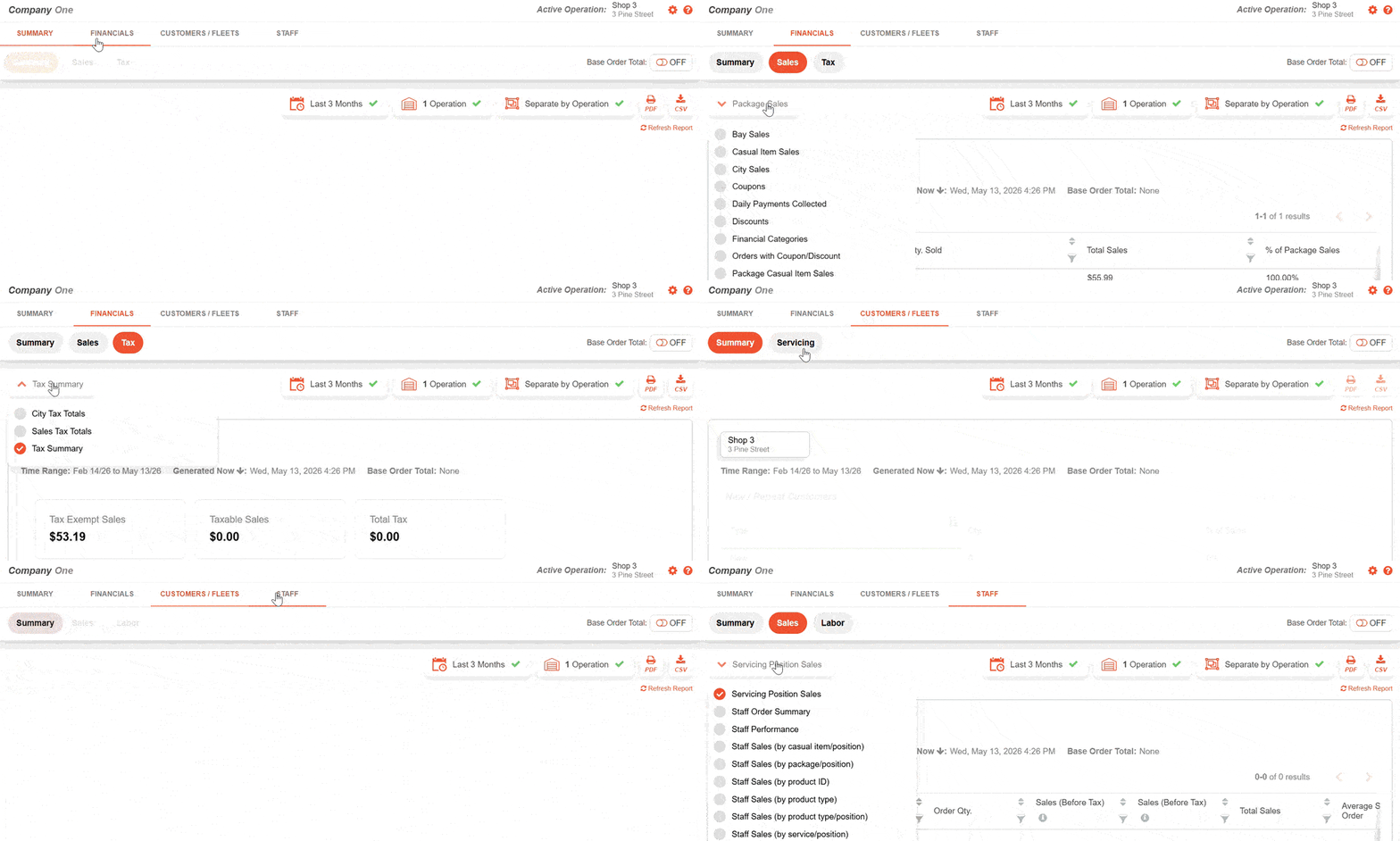
Droptop has four (4) reporting sections.
- Summary - Provides an overview of key metrics.
- Financials - Includes various sales reports.
- Customer/Fleets - Focused on reporting for Customers and Fleets.
- Staff - Displays staff sales and labour reports.
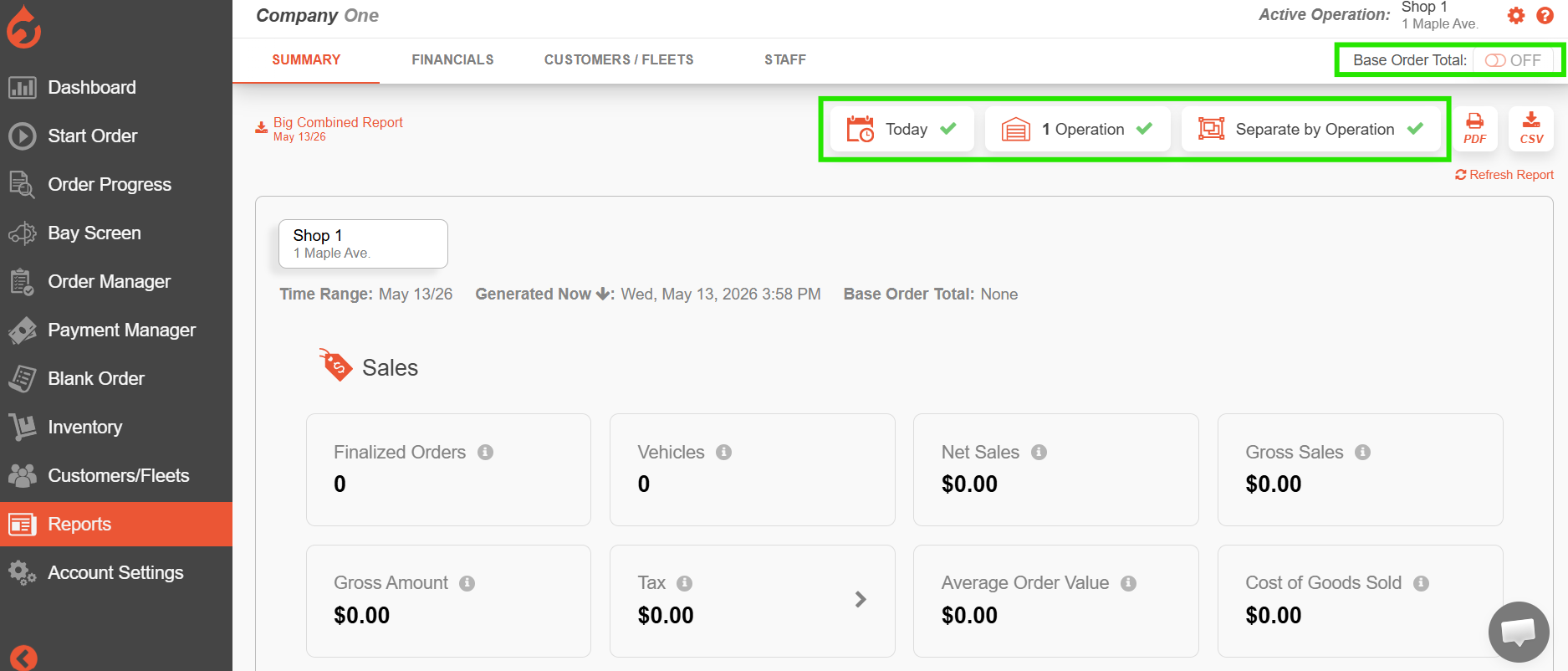
Within the reports, you can apply the following filters:
Date: Select a specific time period for the report.
Operation: Choose which operation's report you want to view or export. You can also view data for multiple operations simultaneously.
Separate or Roll-Up Reports: For multi-operation companies, you can either separate reports by operation or combine all operations' data into a single report.
- Base Order Total:
This feature can be enabled in your Operation Settings (Account Settings > Operations > select Settings for the specified operation > Reporting).- When activated, it filters your reports to display only orders exceeding the specified value. Simply toggle the feature ON or OFF for the reports you wish to apply it to.
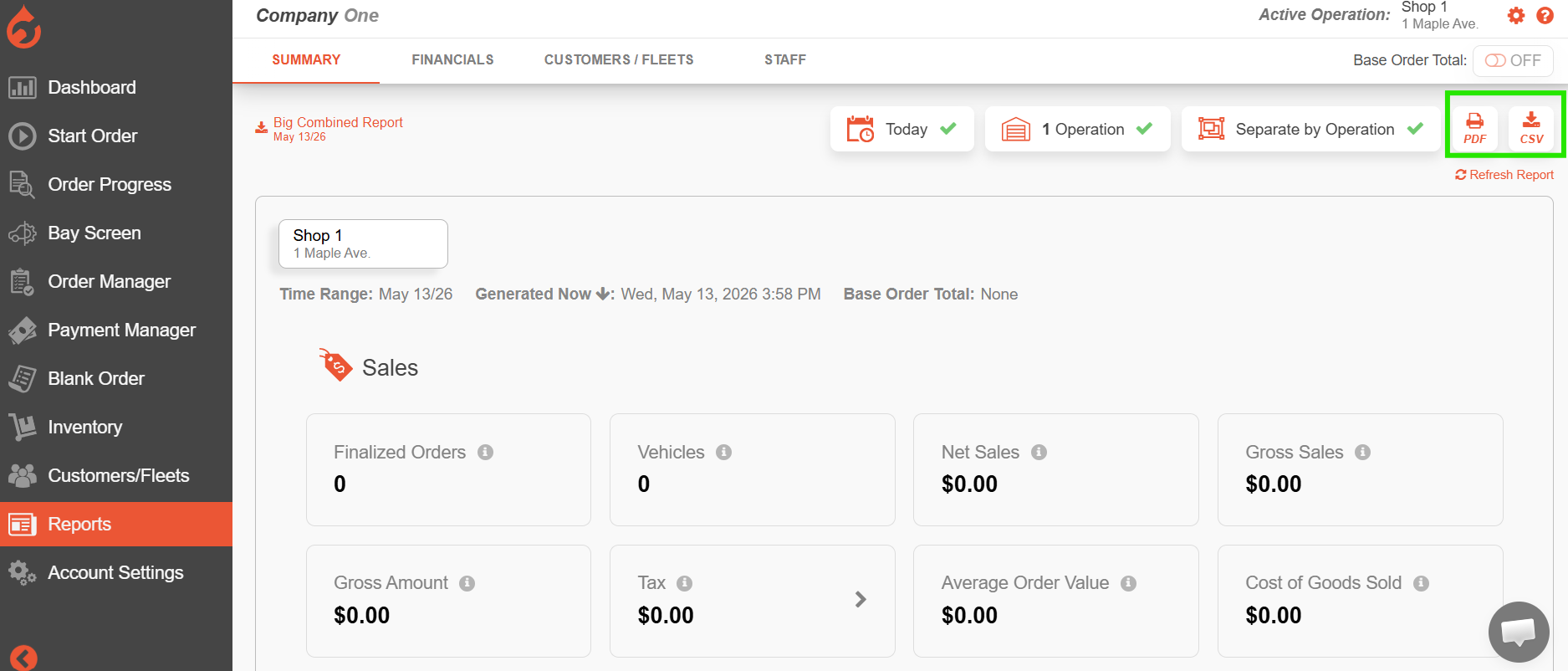
To export a report, select from the PDF or CSV options. Once exported, you can then print it out as needed.
Within each reporting section, you will find various sub-reports tailored to provide detailed insights and specific metrics.
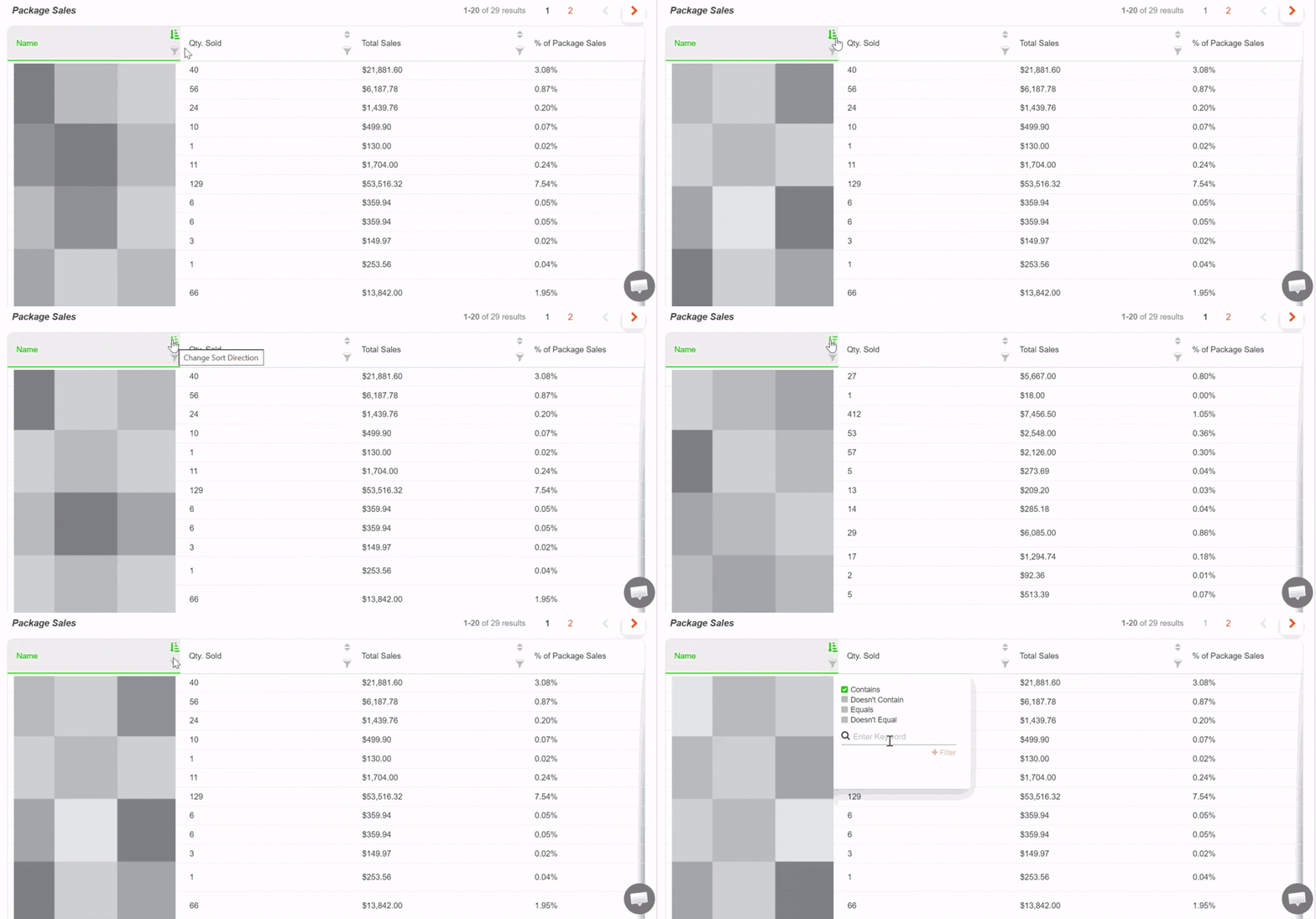
Sort & Filter: You can sort and filter within the sub-reports. When filtering set the desired filter criteria and click "Search" to apply the filter.
Was this article helpful?
That’s Great!
Thank you for your feedback
Sorry! We couldn't be helpful
Thank you for your feedback
Feedback sent
We appreciate your effort and will try to fix the article